Bring Jev to BigQuery with Cloud Run
Part 1 of 3 · Typed AI in BigQuery
On this page
Jev launched last week and has been getting a lot of attention across the tech space for how fast and cheap it runs. It promises fast classification with typed outputs, so naturally I wanted to try it out with a database. I was curious whether it could turn the judgment calls we make every day about business data into columns we can use in SQL. Support tickets seemed like a good place to start.
Imagine receiving a ticket with the subject “Nightly import failed.” The message body states:
Our nightly import has failed twice. Finance needs updated numbers before the end of day tomorrow. We’re still able to query yesterday’s data.
The ticket has a deadline requiring attention, but the reporter can still work with yesterday’s data while today’s import problem is resolved. It’s a very different situation than something like a company-wide login outage with no workaround, even if both tickets were marked as urgent.
These are the kinds of distinctions I want to turn into queryable columns in my database. Once each ticket has scores for urgency and blocking, we can combine them with the ticket’s status to answer a very basic question: which active tickets need attention first?
Here’s the query we’ll build toward, which uses urgency and blocking scores from Jev:
SELECT ticket_id, subject, route, urgent_probability, blocked_probability
FROM jev_demo.enriched_tickets
WHERE status != 'closed'
  AND urgent_probability >= 0.80
  AND blocked_probability >= 0.80
ORDER BY ticket_id;
Across our 30-ticket sample dataset, this query only surfaces four tickets: an unapplied seat purchase, an SSO outage, an import that couldn’t start, and exports timing out before a deadline. Meanwhile, the “Nightly import failed” ticket above is classified as urgent, but stays out of this fire drill because it falls below the blocked threshold.
Turning ticket text into typed answers
Jev is TypeSafe’s model for typed evaluations. You provide input, called state, along with questions about it, and specify the kind of answer each question should return. Choice selects from categories you define, Noul returns a probability between 0 and 1, and Score rates the input against an ordered scale you specify. For this example, we’ll use Choice to assign an owning team and Noul to estimate the probabilities of urgency and blocking.
Here I define urgency as a concrete need for prompt action, and blocking as a workflow that cannot continue without a usable workaround. Both concern the situation when the ticket was submitted.
BigQuery already supports these kinds of tasks through AI.CLASSIFY, AI.IF, and AI.SCORE — and a follow-up blog will compare Jev with BigQuery AI functions. But for this walkthrough, I wanted to explore how Jev fits into a SQL workflow. Just yesterday MotherDuck introduced Jev in SQL, and here, we’ll connect it to BigQuery through Cloud Run.
The example dataset contains 30 fictional tickets. I’d encourage you to inspect the examples and change the wording yourself to see how Jev responds.
Connecting Jev, Cloud Run, and BigQuery
I started by creating a TypeSafe account and following its official quickstart in the playground. Then I created an API key and placed it in Google Cloud’s Secret Manager. The Python adapter runs as a private Cloud Run service.
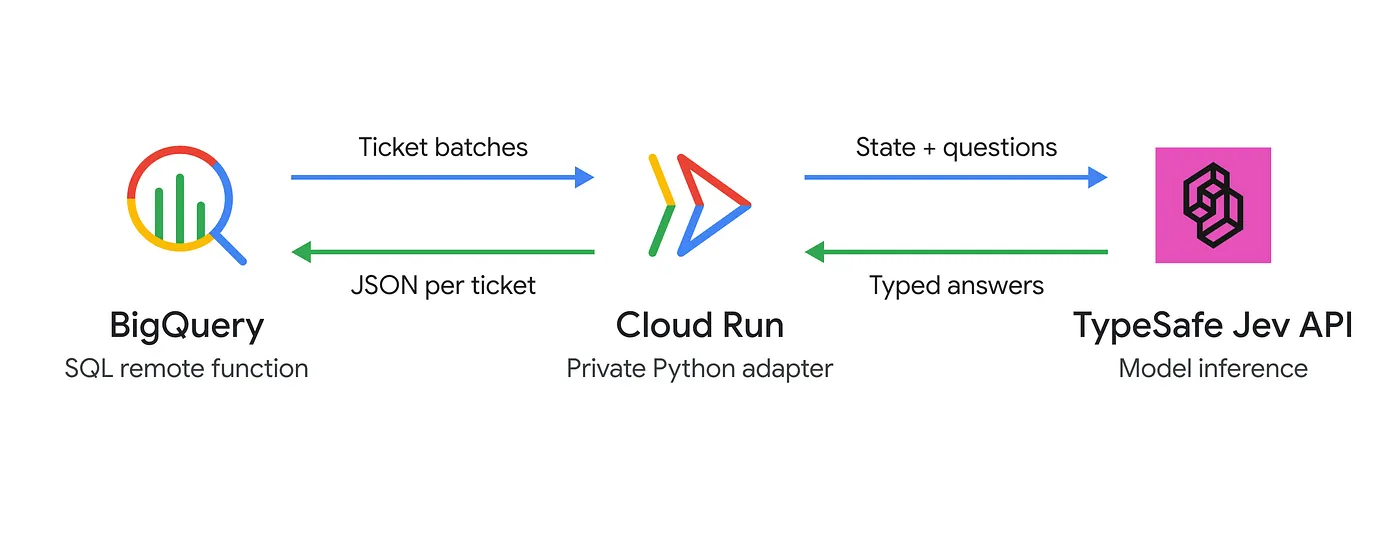
Cloud Run hosts the adapter and TypeSafe’s API runs Jev inference. The adapter translates BigQuery’s batched calls into Jev questions, then returns one JSON object per ticket in the ordered replies array. The adapter source contains the category definitions and question wording.
To deploy it yourself, follow the setup guide on GitHub. It includes the setup for secrets, service account, and to deploy a Cloud Run service. Before connecting BigQuery, test the deployed service with Cloud Run’s auth’d proxy:
gcloud run services proxy jev-support-demo \
  --project=YOUR_PROJECT_ID --region=us-west1 --port=8787
Your signed-in account needs permission to invoke the service. Leave the proxy running and, from the repository directory in another terminal, send examples/two-tickets.json, which pairs the nightly import ticket from earlier with a second ticket for an SSO outage:
- Import data ticket (T013 — Nightly import failed): “Our nightly import has failed twice. Finance needs updated numbers before the end of day tomorrow. We’re still able to query yesterday’s data.”
- SSO ticket (T007 — Company-wide SSO outage): “After our identity-provider change this morning, SSO fails for every employee. Nobody can sign in and there is no alternative login enabled.”
curl --fail-with-body --silent --show-error \
  http://127.0.0.1:8787/tickets \
  -H 'Content-Type: application/json' \
  --data-binary @examples/two-tickets.json | jq .
Here’s the response from Cloud Run:
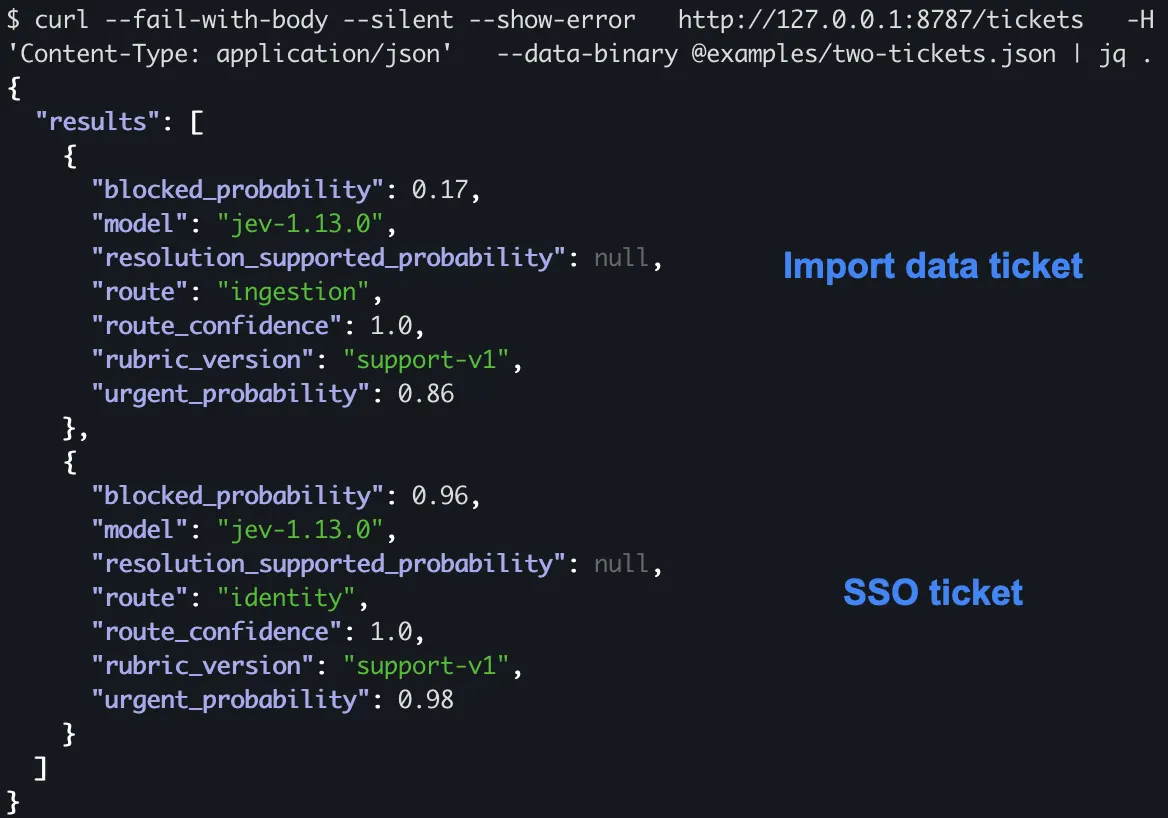
Both tickets require prompt attention, but the SSO outage blocks access entirely. The urgency and blocking probabilities Jev returned reflect that difference. This test also confirms that the deployed service can access the API key, call Jev, and return results.
Next, I created a BigQuery dataset called jev_demo and used a BigQuery Cloud Resource connection to let BigQuery invoke the adapter. The connection’s service account has the Cloud Run Invoker role on the service, while the adapter’s runtime identity has permission to read the secret.
This is where BigQuery’s remote functions are super useful — they let a SQL query call your code running outside BigQuery. In this example, the code runs in Cloud Run and calls Jev. I register the remote function with the connection and my Cloud Run service URL:
CREATE OR REPLACE FUNCTION jev_demo.classify_ticket(ticket JSON)
RETURNS JSON
REMOTE WITH CONNECTION `YOUR_PROJECT_ID.US.jev_cloud_run`
OPTIONS (
  endpoint = 'CLOUD_RUN_SERVICE_URL/bigquery-tickets',
  max_batching_rows = 5
);
I set max_batching_rows to 5, meaning BigQuery sends up to five tickets per request to Cloud Run. You can change this for your workload, keeping Jev’s input limits in mind.
Querying the ticket queue
I then called the remote function for each ticket and saved the results in BigQuery:
CREATE OR REPLACE TABLE jev_demo.ticket_scores AS
SELECT
  ticket_id,
  CURRENT_TIMESTAMP() AS scored_at,
  jev_demo.classify_ticket(
    TO_JSON(STRUCT(subject, description, status, resolution))
  ) AS features
FROM jev_demo.support_tickets;
The full scoring script in GitHub also creates an enriched_tickets view, which joins results back to the tickets and extracts JSON fields into columns. If you’re following along, run that script to create both the saved results and the view.
Saving the results lets me experiment with different queue rules without calling Jev each time. Once the probabilities are available as columns, it’s straightforward to summarize active workloads by team with SQL:
SELECT
  route,
  COUNT(*) AS active_tickets,
  COUNTIF(urgent_probability >= 0.80) AS urgent_tickets,
  COUNTIF(blocked_probability >= 0.80) AS blocked_tickets
FROM jev_demo.enriched_tickets
WHERE status != 'closed'
GROUP BY route
ORDER BY active_tickets DESC, route;
Here’s what the query returns in my run:
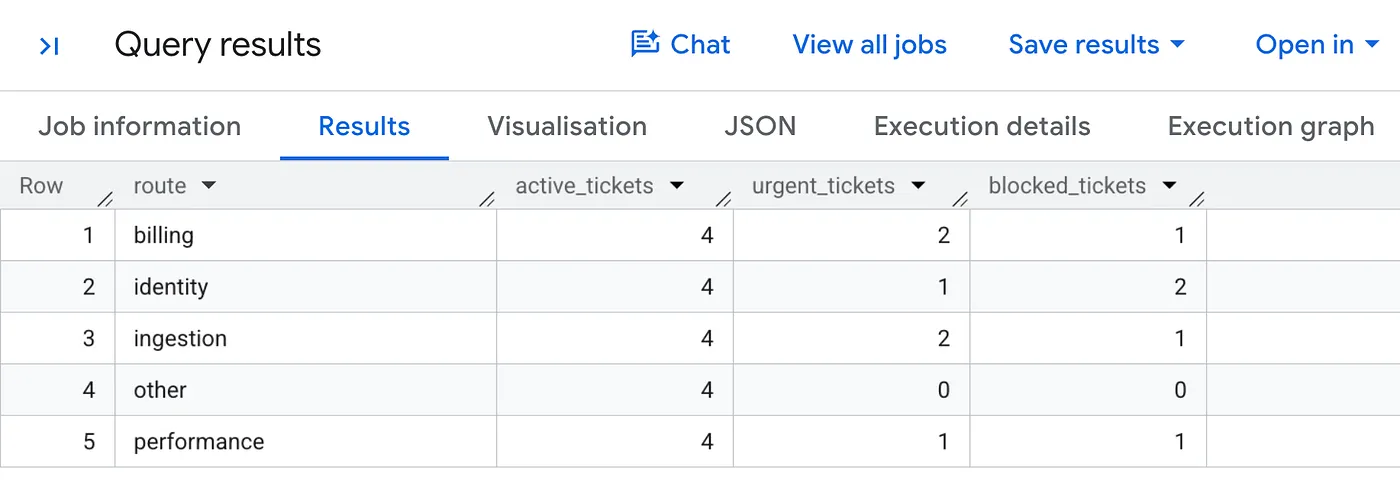
Each team has an equal number of active tickets in this dataset, but the counts of urgent and blocked tickets show a different picture of the team’s work. I can also use the query from the opening of this blog to find tickets that meet both thresholds (urgent_probability >= 0.80 AND blocked_probability >= 0.80).
This is where my interest in Jev + BigQuery stems from — judgements about ticket text become columns that I can filter, group, and join to other business data. The repo includes other examples for assigning review queues and checking whether resolution notes support closing a ticket.
I use 0.80 as an example cutoff, but that figure needs testing against your own tickets and priorities for real-world use cases. If missing a blocked customer is more costly than reviewing another ticket, you might consider a lower cutoff for blocking. Saving the probabilities to a table lets you explore that tradeoff without calling Jev again.
This also made me curious about how Jev compares with BigQuery’s existing AI functions. I’ll explore this in a separate blog by comparing Jev with AI.IF on real-world data, to dig into quality, latency, and token usage as the data grows.
But for now, the GitHub repo gives a useful starting point to try it yourself!